
How to Invite Users
Inviting users to your Buildaible app allows your team to collaborate effectively and access the tools they need. You can add users individually or invite multiple users at once by assigning them a role. Follow the steps below to invite users to your app.
Steps to Invite Users
-
Access App Settings
-
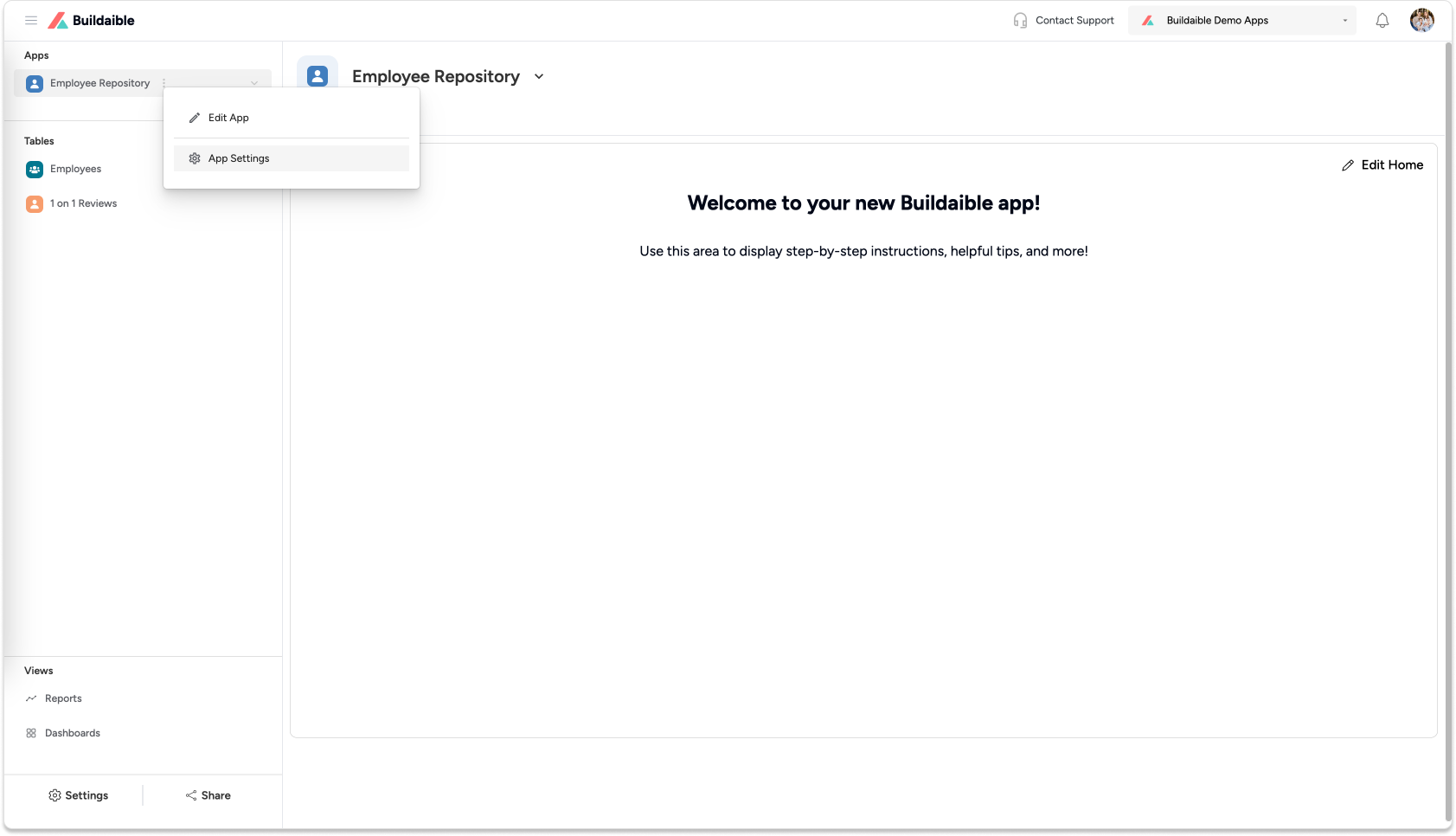
Go to the App Home of the app where you want to invite users.
-
Click the down arrow next to the app name at the top of the screen.
-
Select “App Settings” from the dropdown menu.
-
-
Open the Users Tab
Once you are in the App Settings, you’ll land on the Users tab. This is where you manage all users invited to your app..png)
-
Add New Users
To invite users to your app:-
Click “+ New User(s)” in the top-right corner.
-
A pop-up window will appear titled “Invite New Users.”
.png)
-
-
Enter User Details
-
In the pop-up, enter the email address of the user you want to invite.
-
Select the role for the user from the dropdown menu.
-
Admin: Can customize the app and use all features.
-
Standard User: Can use the app but cannot customize it.
-
-
To invite multiple users:
-
Click the “+ Add” button to create a new row.
-
Enter the additional users’ email addresses and roles.
.png)
-
-
-
Send the Invitation
Once all user details are entered:-
Click the “Invite to App” button at the bottom-right of the pop-up.
-
An email invitation will be sent to each user, prompting them to join the app.
-
Important: If your account is a free single user account, you must subscribe to add additional users. However, your account will always include one free user.
Managing Invited Users
Once invited:
-
Users will receive an email with instructions to join the app.
-
Their status will appear in the Users Tab as Pending until they accept the invitation.
If needed, you can:
-
Resend Invitations: For users who haven’t accepted yet.
-
Update Roles: Adjust user roles.
-
Remove Users: Manage app access by removing users who no longer need access.
Tips for Inviting Users
-
Bulk Invites: Use the + Add feature to invite multiple users in one go.
-
Assign Roles Carefully: Admins have full access to app customization, while Standard Users can only interact with the app.
-
Confirm Emails: Ensure email addresses are correct to avoid delays in invitations.
Next Steps
Once your users are invited:
-
Learn How to Customize App Permissions:
-
Control who can access or edit specific parts of your app.
-
-
Train Your Team:
-
Share Buildaible guides to help users navigate your app, customize views, and run reports.
-
-
Start Collaborating:
-
Work together seamlessly with shared tables, reports, and dashboards.
-
For further assistance, contact our Support Team at support@buildaible.com.
By following these steps, you can quickly onboard your team and get them up and running in your Buildaible app!