
Managing App Users
The Manage Users feature in Buildaible allows you to view, invite, edit, and manage user roles and access within your app. This helps maintain control over your team’s app usage, ensuring everyone has the right permissions.
Accessing the Manage Users Page
Managing Users: Key Actions
For each user, the available actions are accessed by clicking the three dots on their row.
-
Edit User
-
Allows you to update the user’s role.
Example: Change a user’s role from Standard User to Administrator..png)
.png)
-
-
Delete User
-
Permanently removes the user from the app.
-
This action disables access for the user.
Important: Deleting a user is irreversible. To reinstate them, you must invite them again. You may also experience data loss within user fields by utilizing this option.
-
-
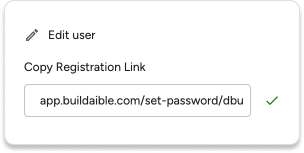
Copy Registration Link
-
If a user hasn’t set up their account yet, you can copy their registration link and share it with them.
-
Simply click “Copy Registration Link” and send the link via email or chat.
-
Best Practices for Managing Users
-
Review Roles Regularly: Ensure users have the appropriate role for their tasks.
-
Remove Inactive Users: Keep your user list clean by removing inactive or unnecessary accounts.
-
Share Registration Links: If an invited user hasn’t set up their account, resend or share their registration link.
Next Steps
-
Learn how to invite users.
-
For a better understanding of roles and permissions, visit Creating & Managing App Roles.