
How to Connect (Relate) Tables
Relating tables is a powerful feature in Buildaible that allows you to link data between tables. For example, you can link a “Projects” table (parent) to a “Tasks” table (child) so that each task is associated with a specific project.
This is done by adding a Link a Record field in the child table. Follow these steps to set up a relationship between two tables.
Steps to Connect Tables
-
Navigate to the Child Table
Start by navigating to the table you want to act as the child in the relationship (e.g., “Tasks”).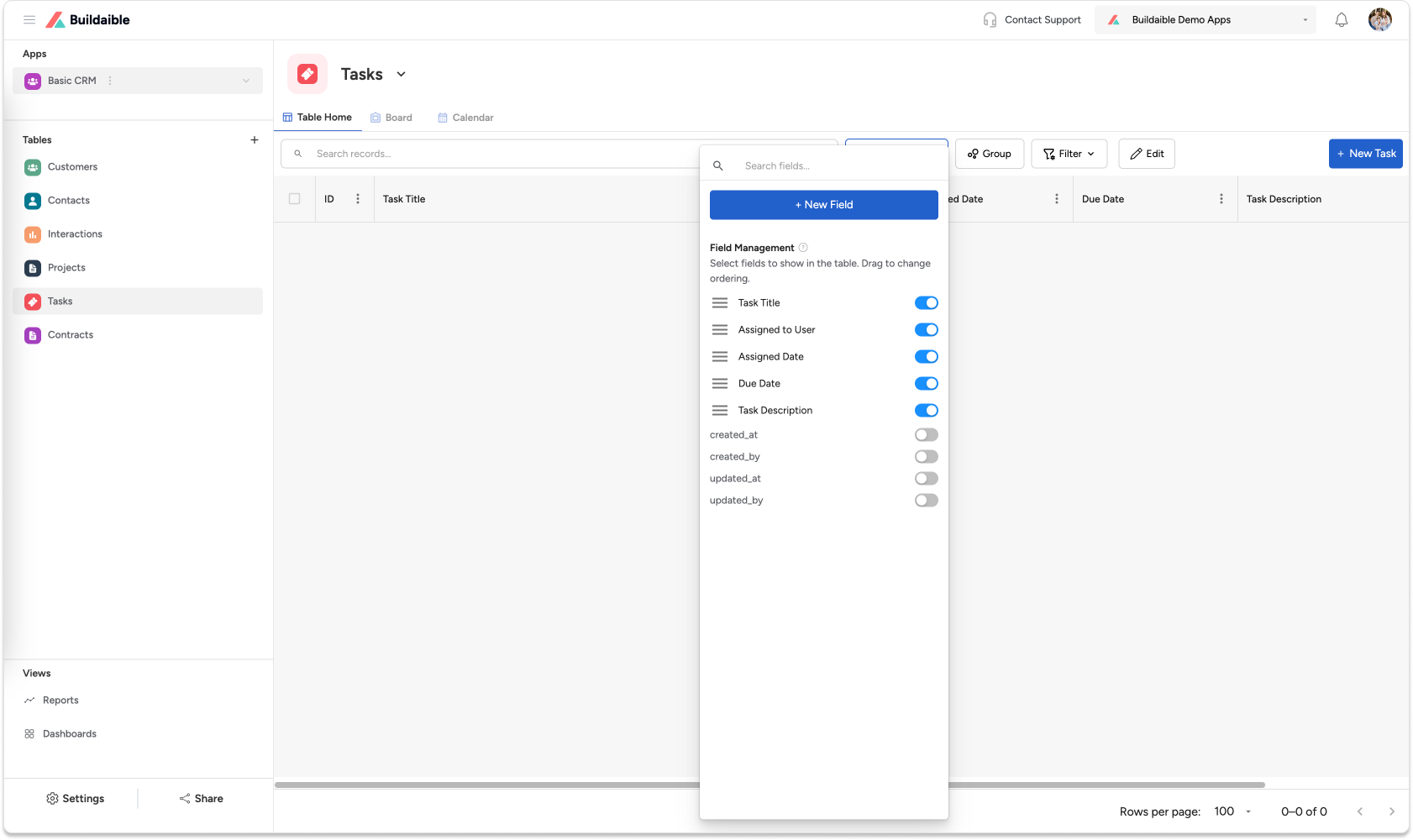
-
Add a Link a Record Field
-
Click “Manage Fields” or navigate to the Fields section of your child table.
-
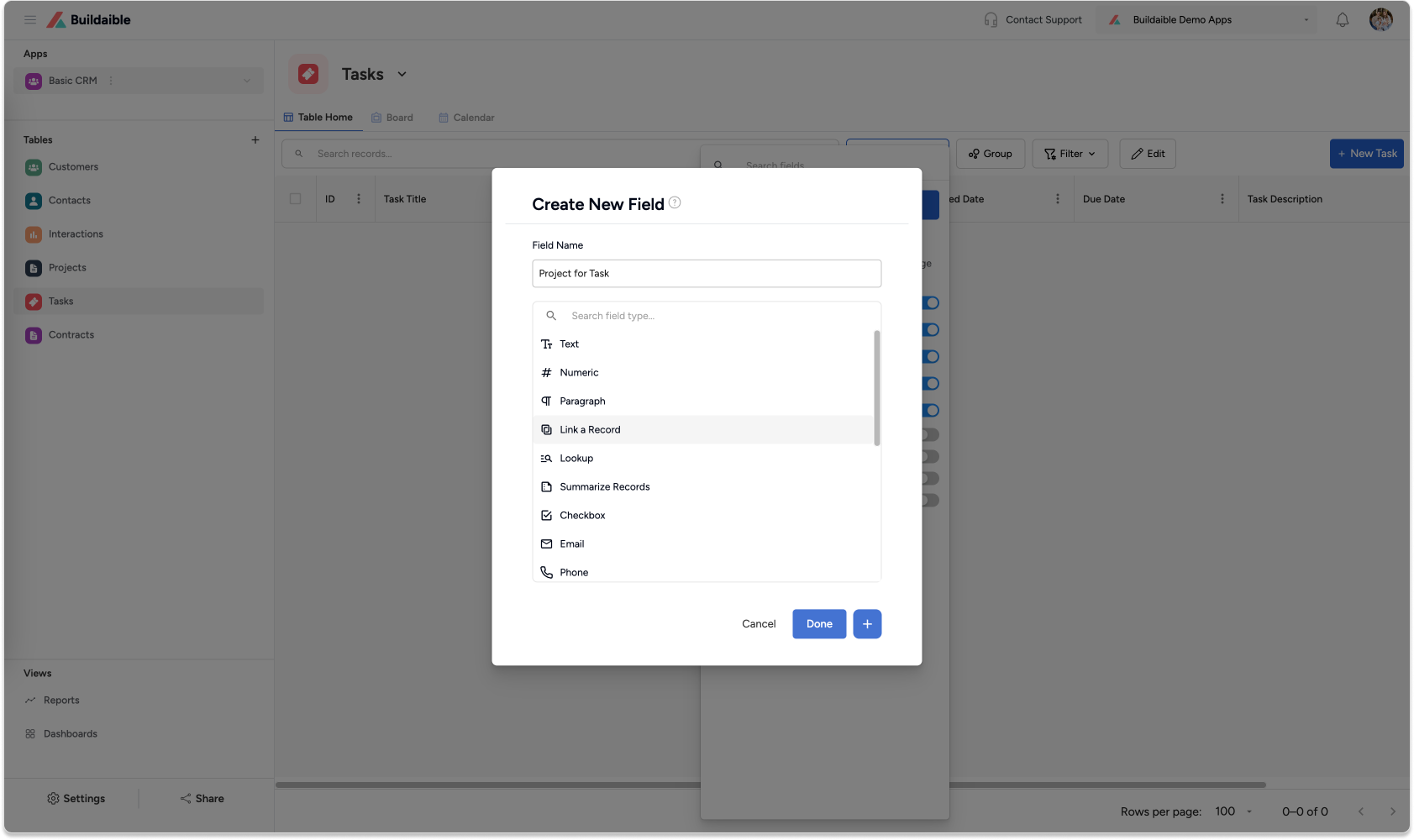
Click “New Field”.
-
Select Link a Record as the field type.
-
-
Configure the Link a Record Field
In the field setup screen:
-
Name the Field: Enter a meaningful name, such as “Related Project” or “Customer.”
-
Select the Parent Table: Choose the table you want to link to, such as “Projects” or “Customers.”
-
Select the Linking Field: Specify the field from the parent table you want to use as the linking value (e.g., “Project Name” or “Customer Name”).
(1).png)
-
-
Save the Field
Click DONE to add the Link a Record field to your child table. The relationship between the child and parent table is now established.
.png)
Using the Link a Record Field
Once the field is added:
-
You can now link records from the parent table to records in the child table.
-
The child table will display the linked values (e.g., a task linked to a specific project).
.png)
Tips for Relating Tables
-
Start with a Clear Structure: Decide which table is the parent and which is the child before creating relationships.
-
Use Descriptive Field Names: Make the purpose of the relationship clear by naming the field accordingly (e.g., “Associated Project” instead of “Link Field”).
-
Add Lookup Fields if Needed: To pull additional information from the parent table (e.g., customer emails or project deadlines), use Lookup fields after creating the Link a Record field.
Next Steps
Now that you’ve connected your tables with a Link a Record field, you might want to enhance the relationship further. Here are some next steps to take:
-
Learn About Lookup Fields: Use Lookup fields to pull additional information from the parent table into the child table. For example, if you’ve linked a “Tasks” table to a “Projects” table, you can create a Lookup field to display the project manager’s name or deadline in the “Tasks” table.
-
Customize Your Forms: Optimize data entry by customizing the forms in your child and parent tables. This makes it easier for users to input and view linked data.
-
Create Reports to Analyze Linked Data: Build reports that show relationships between tables, such as all tasks grouped by project or customer orders by date.
By exploring these features, you can unlock the full potential of linked tables and create a more efficient and insightful Buildaible app. If you need additional guidance, don’t hesitate to reach out to our Support Team!