
How to Customize Forms
Customizing forms in Buildaible allows you to tailor data entry for your team, ensuring an intuitive and efficient experience. You can create new forms, organize them into sections, and drag-and-drop fields to match your workflow.
Steps to Access and Customize Forms
-
Access the Forms for a Table
To access forms for a specific table:-
Open the table where you want to customize a form.
-
Click the down arrow next to the table name.
-
Select Table Settings from the dropdown menu.
-
In Table Settings, click on “Forms”.
.png)
-
-
View or Edit Existing Forms
On the Forms page, you’ll see a list of all forms associated with the table.To edit an existing form:
-
Click the three dots next to the form name.
-
Select “Edit Form.”
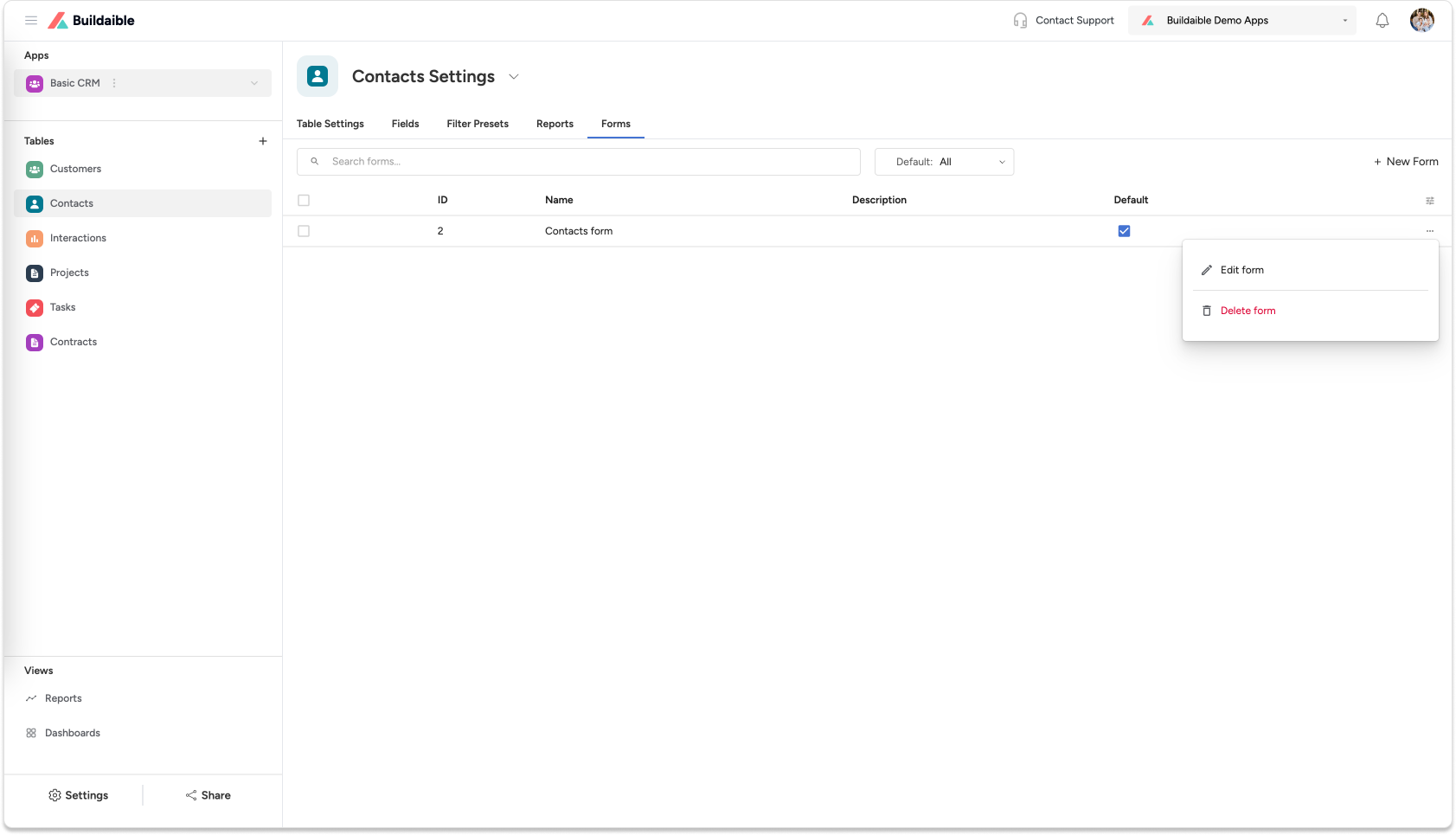
To create a new form:
-
Click the “+ New Form” button.
-
-
Use the Form Editor
Once you open the form editor, you can fully customize the form layout.-
Add and Customize Sections
-
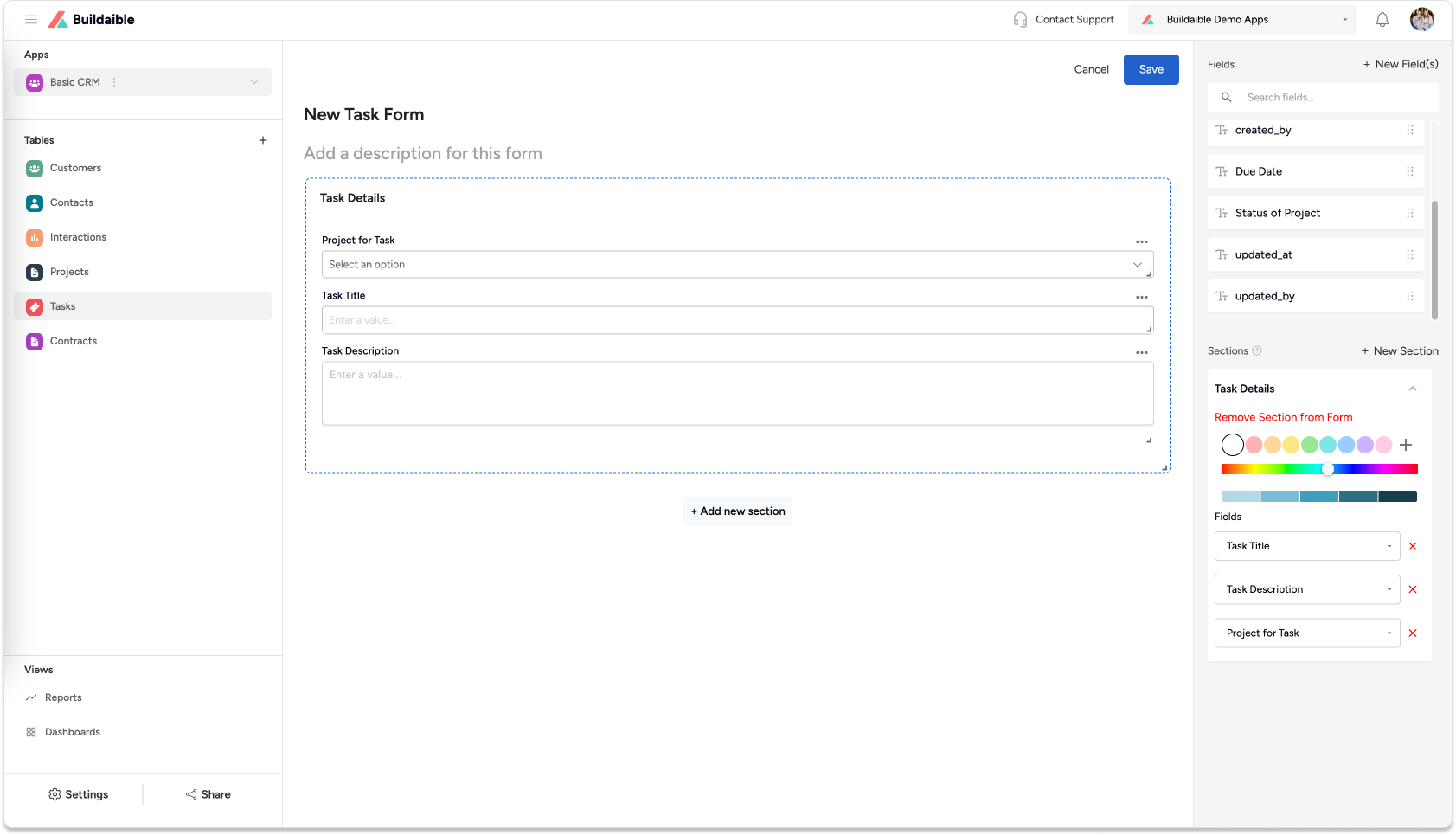
Click + New Section on the right-hand panel to add a section.
-
Name your section (e.g., “Submission Details” or “Assignee Information”).
-
Use the colorization option to highlight sections for better visibility and organization.
-
-
Add and Organize Fields
-
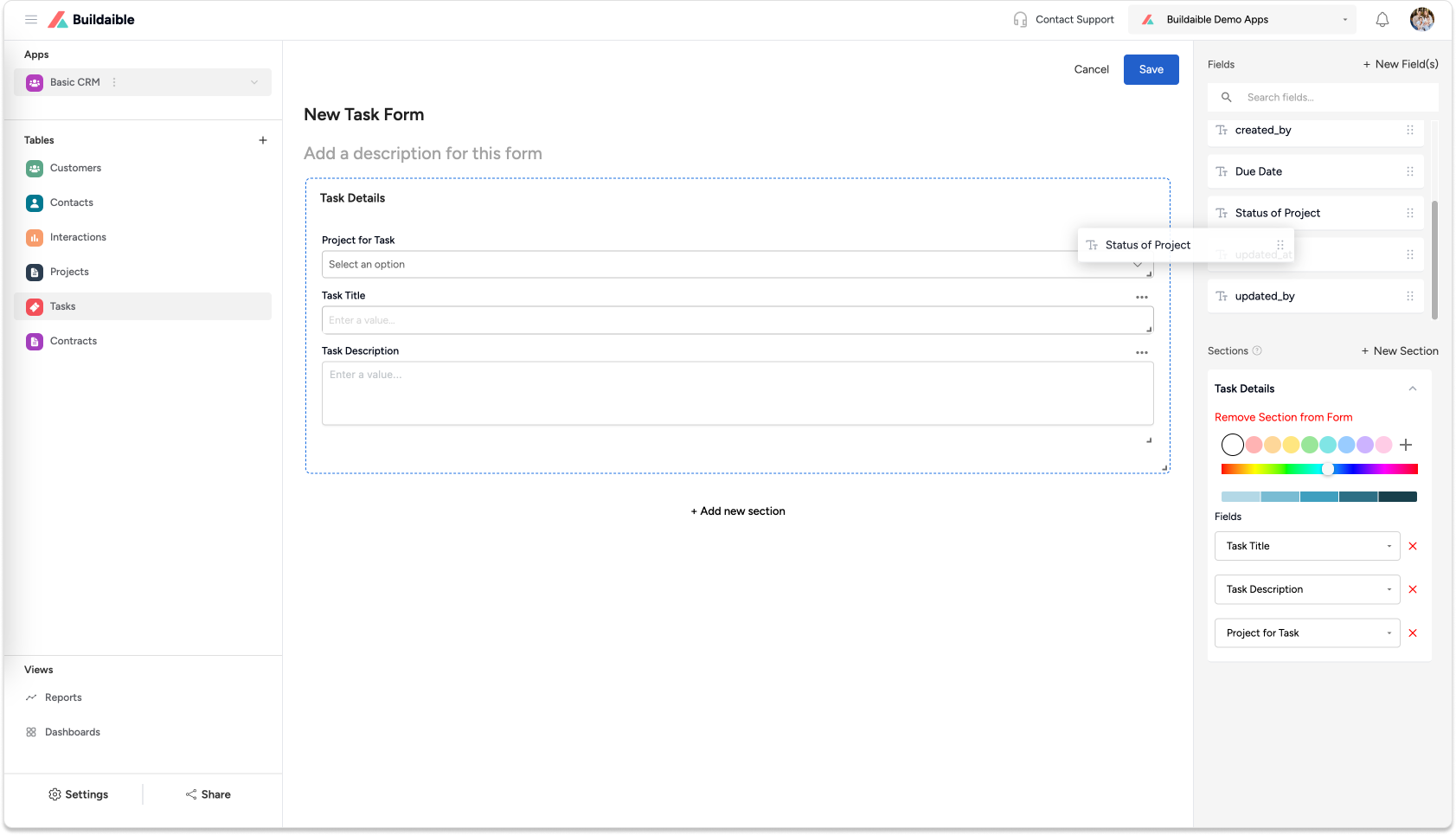
Drag and Drop Fields: From the Fields panel on the right, drag fields into the desired sections.
-
Create New Fields: If a field doesn’t exist yet, click “+ New Field” in the right-hand panel to create one.
-
Reorganize Fields: Move fields between sections.
-
-
Adjust Layout and Field Settings
-
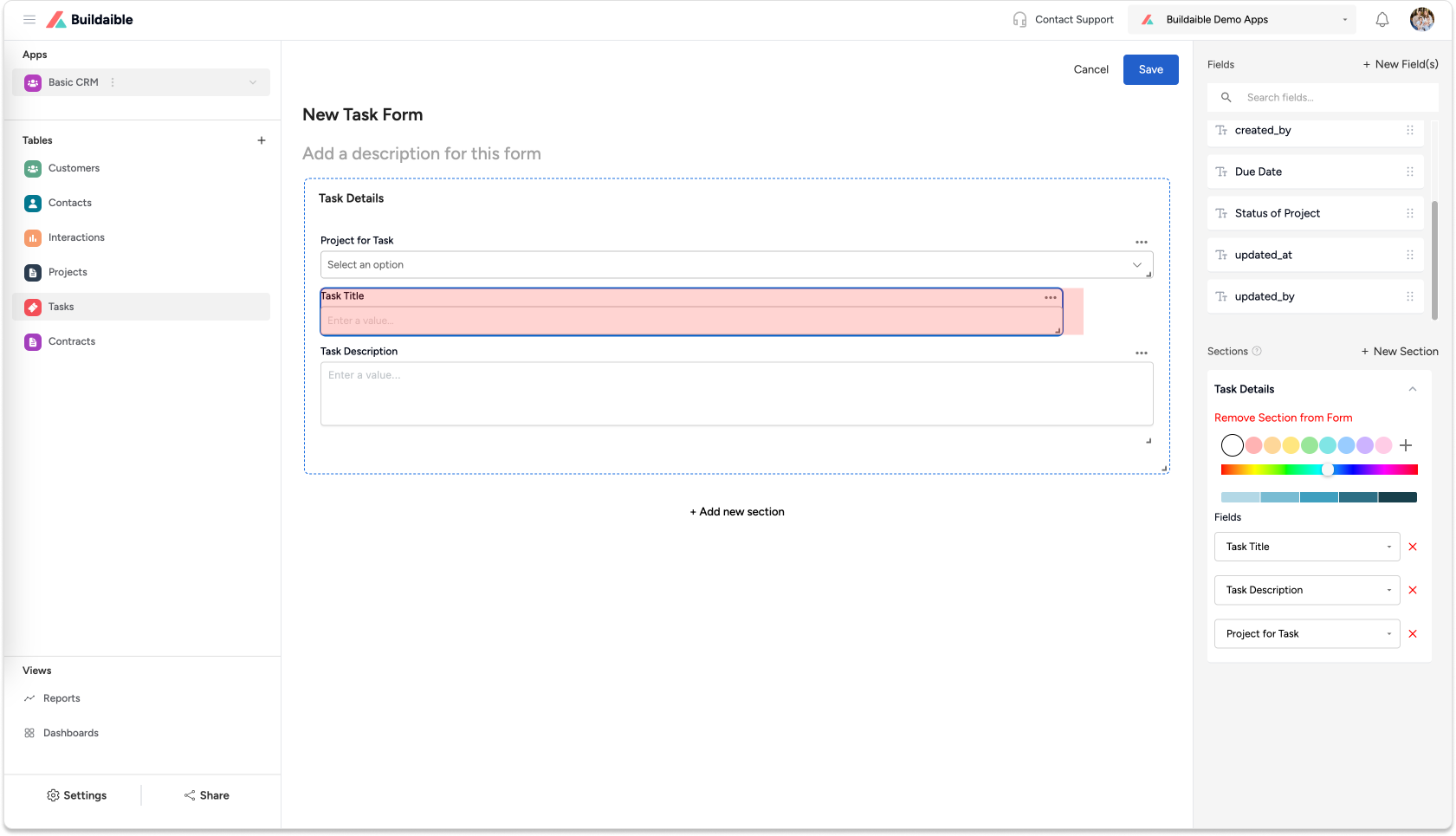
Resize sections or fields as needed for better alignment.
-
-
Click the Save Button in the top-right corner to save changes to your form.
Your form is now ready for use and will appear in the table’s form list.
-
Key Features of Buildaible Form Customization
-
Flexible Sections: Organize forms with clear sections and optional color coding to improve usability.
-
Drag-and-Drop Fields: Easily add, move, or remove fields to match your workflow.
-
On-the-Fly Field Creation: Create new fields directly from the form editor without returning to the table settings.
-
Streamlined Layouts: Customize forms to ensure clean and intuitive data entry for your team.
Next Steps
Once you’ve customized your form, you might want to explore:
-
Learn How to Customize Table Views: Adjust how data appears in your table for a better user experience.\
-
Learn About Field Types: Understand the different types of fields you can add to forms.
-
Test Your Form: Add sample records to your table and test the form’s flow to ensure it meets your needs.
By customizing forms in Buildaible, you ensure that data entry is intuitive, organized, and optimized for your team’s workflows.