
Buildaible Crash Course
Introduction
Welcome to Buildaible – a no-code platform designed to help businesses build custom apps and streamline workflows with ease. This crash course will guide you through the essentials of navigation and getting started in Buildaible, so you can begin building apps and managing data quickly.
Workspace Home: Build a New App
When you log into your workspace, you’ll have the option to start building an app right away.
-
Build It Myself: Create an app from scratch without AI assistance.
-
Import Spreadsheet with AI: Upload your spreadsheet data and let Buildaible’s AI recommend tables and fields for you.
-
Build with AI: Use AI to start building your app from the ground up by providing key details about your business.
.png "Group 15 (1).png")
Workspace Home: App List
The App List is where you’ll see all of the apps in your workspace. You can easily navigate between apps and access descriptions for what each app does..png "Group 17 (2).png")
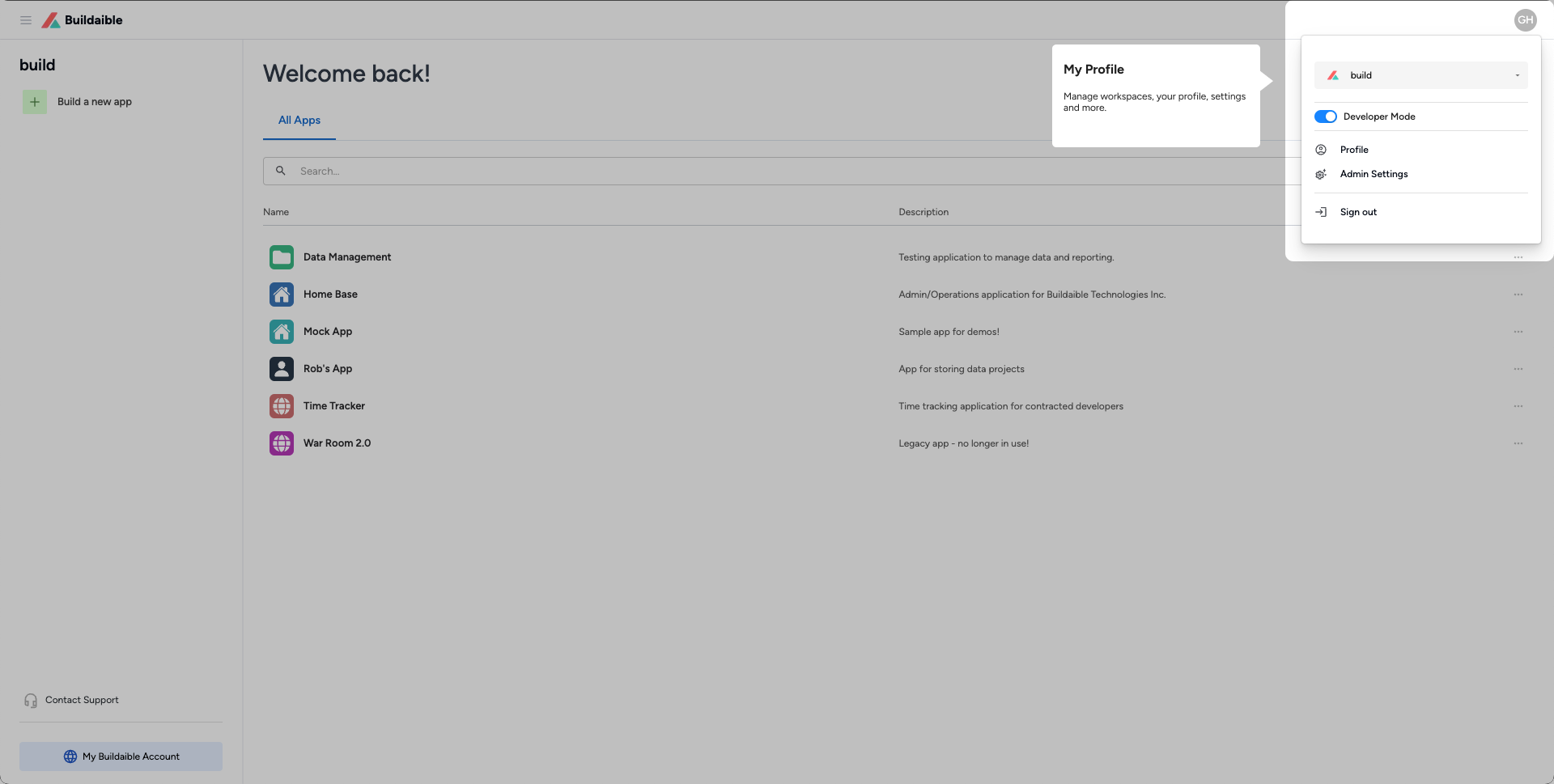
Workspace Home: My Settings
The My Settings menu lets you personalize your Buildaible profile and manage settings.
-
Access your profile by clicking your name in the top-right corner.
-
Update profile details, preferences, and more.
Workspace Home: My Buildaible Account (Admins Only)
For Admins, the My Buildaible Account option is where you can manage workspace-level settings.
-
Access workspace configurations, subscriptions, and team roles.
.png "Group 21 (1).png")
Apps: Dashboard Tabs
Dashboards are where you compile reports and essential app components into a single page for easy access.
-
Add pages (tabs) to organize sections of your app.
-
Display reports, charts, and text information to keep your team informed.
.png "Group 24 (3).png")
Apps: Table Views
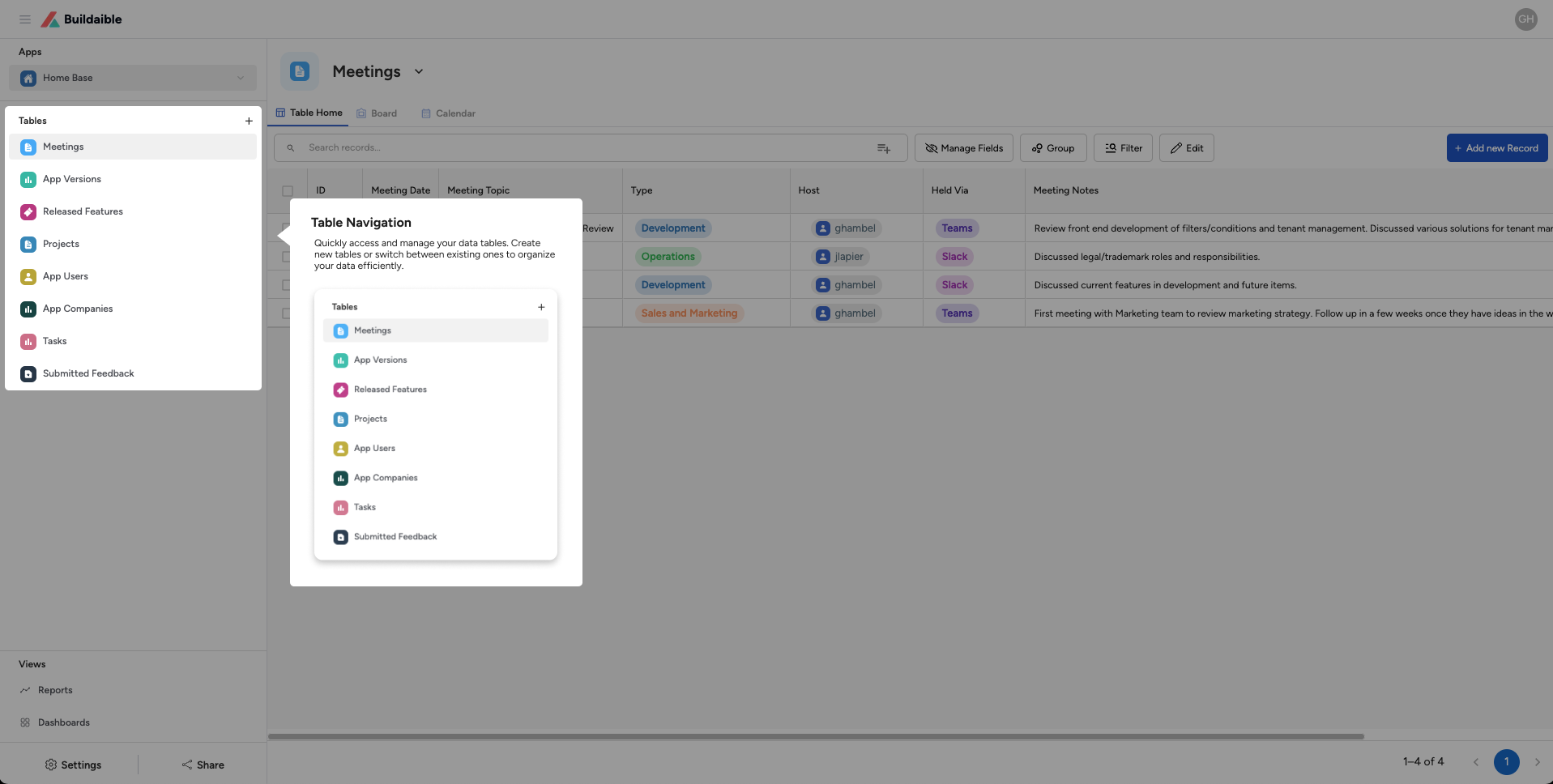
Tables in Buildaible come with built-in views that help you visualize your data:
-
Table View: See your data in rows and columns.
-
Board (Kanban) View: Organize records into a board layout for workflow management.
-
Calendar View: Display records with dates on an interactive calendar.
(2).png "Group 26 (1)(2).png")
Apps: Tool Bar
The Tool Bar provides powerful options for managing and interacting with table data:
-
Filter and Group Records: Refine your data by applying filters or grouping it based on specific criteria.
-
Search Records: Quickly find the information you need by searching across records in the table.
-
Edit: Turn the table into an Excel-like grid, enabling you to edit cells and update field data directly within the columns.
-
Manage Fields: Add new fields to your table or control column visibility to tailor the table view to your needs.
.png)
Apps: Table Settings
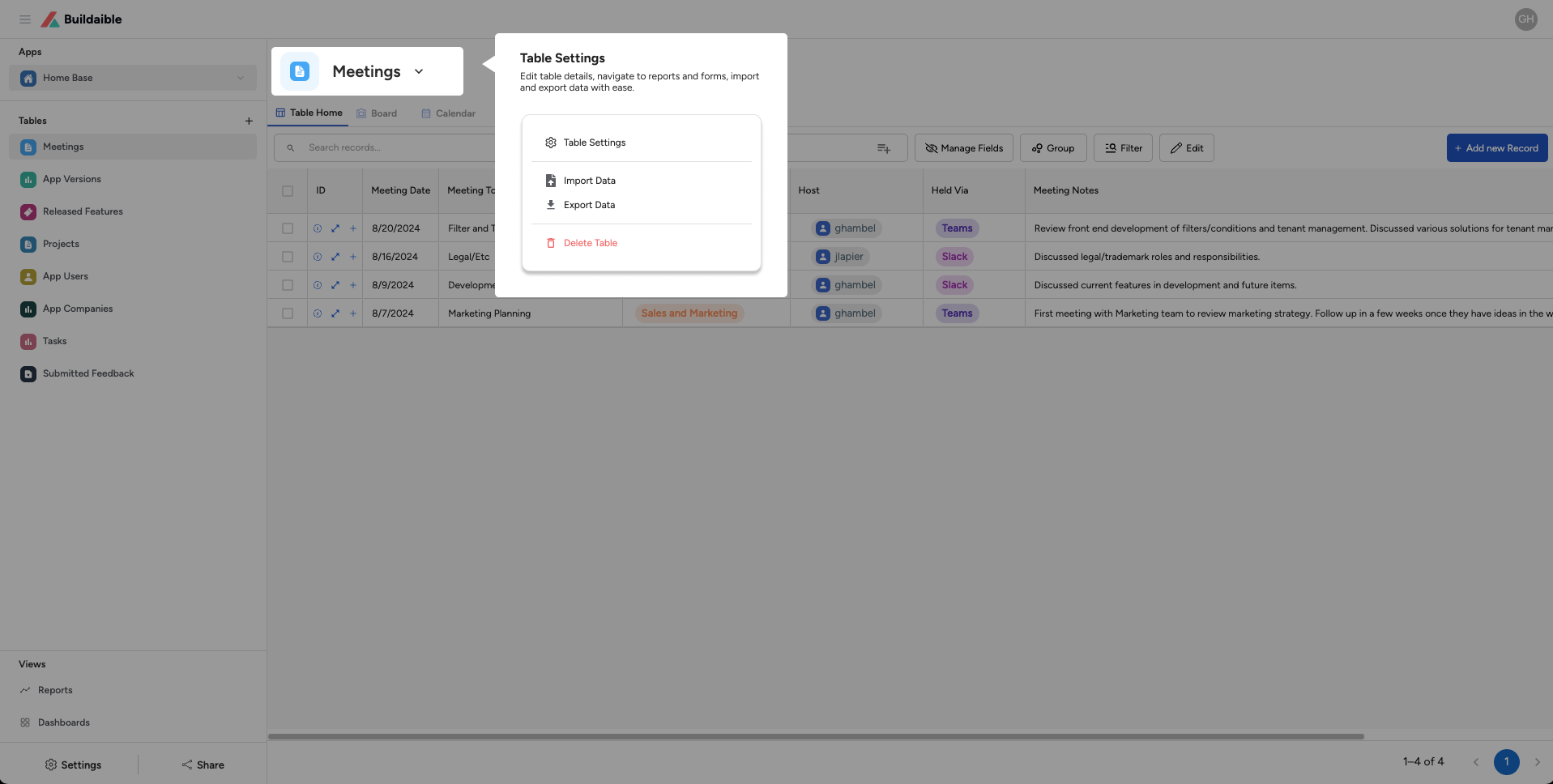
Access Table Settings to customize your table:
-
Edit table details (name, description).
-
Add or modify fields.
-
Import or export table data.
-
Move Between Records Easily: Navigate seamlessly through records without leaving the current table.
-
Open Multiple Records: Buildaible allows you to open multiple records simultaneously, similar to browser tabs. This makes it easy to switch between different records without losing your place.
-
View and Edit Data: Open and update the details for each record in a user-friendly interface.
-
Switch Between Views: Effortlessly toggle between different table views (e.g., Table, Board, or Calendar) while working with records.
.png "Group 29 (2).png")