
How to Export Data
Exporting data from Buildaible is a simple process, giving you flexibility to export all data from a table or only the data matching a specific filter. Follow the steps below to export your data to an Excel file.
Steps to Export Data
-
Navigate to the Table:
Go to the table containing the data you want to export.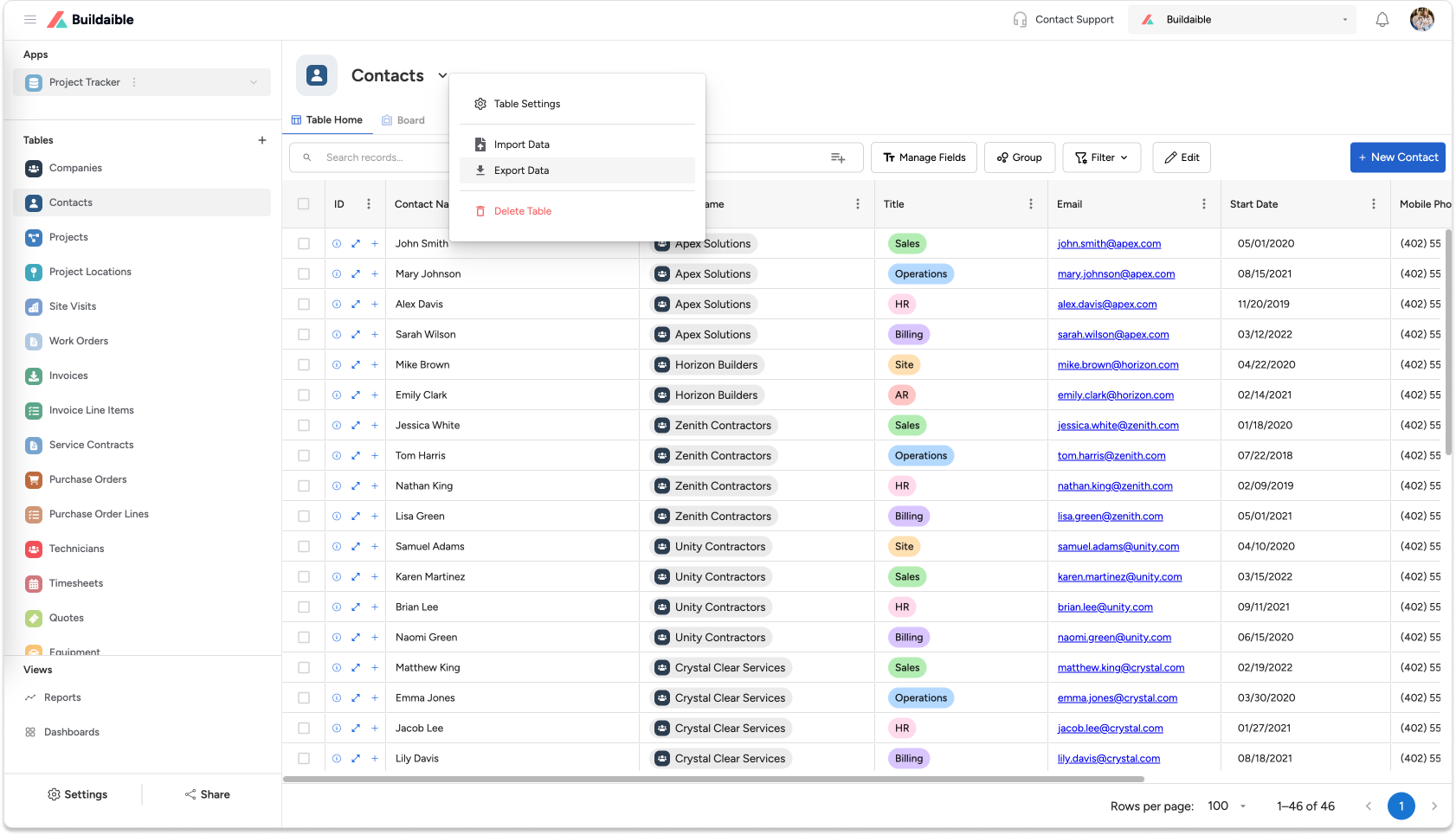
-
Open the Export Options
Click the down arrow next to the table name and select “Export Data” from the dropdown menu. -
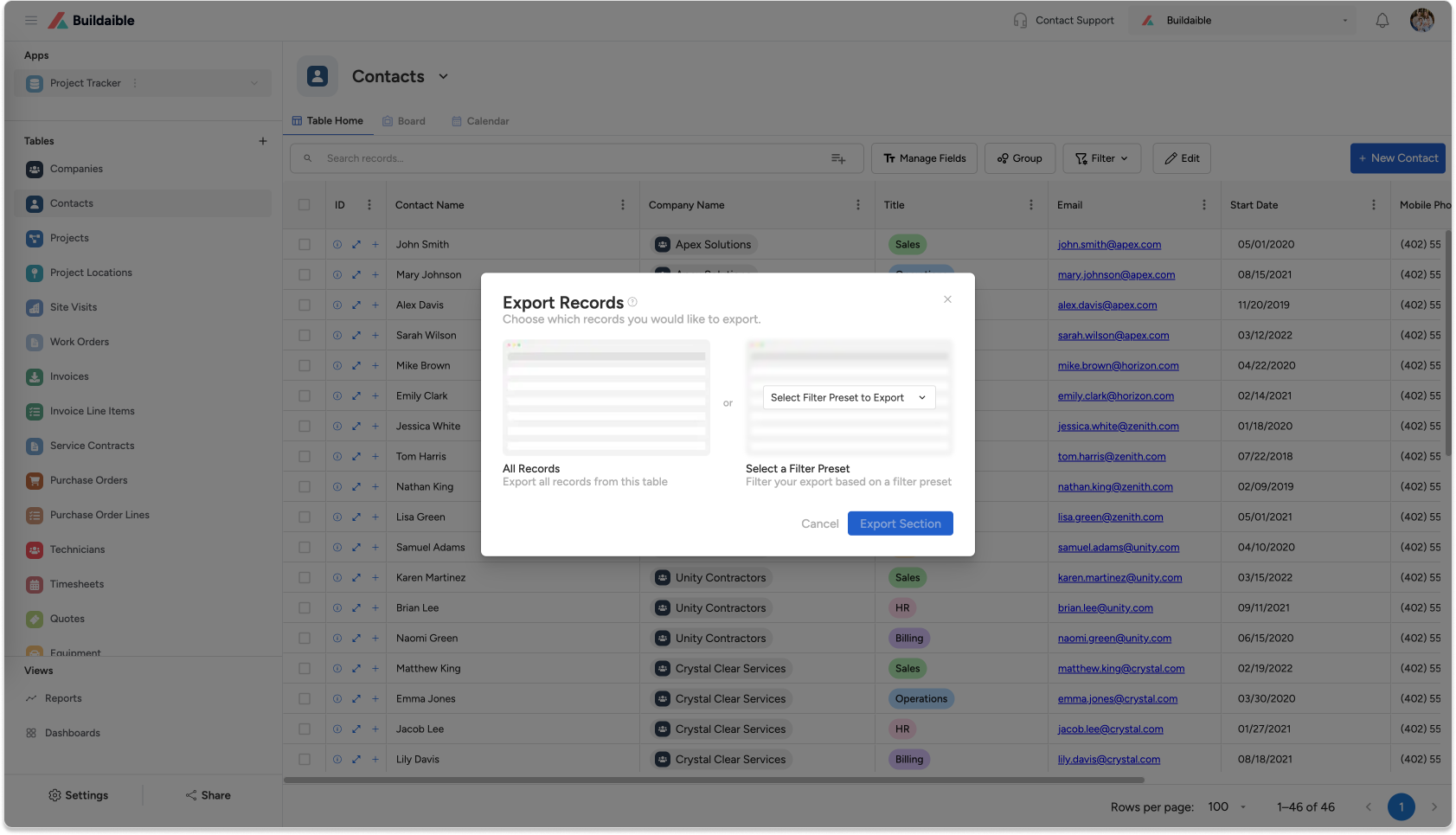
Choose Your Export Preferences
A pop-up will appear with the following options:-
Export All Data: Export the entire table’s dataset.
-
Export Using a Filter Preset: Select a pre-defined filter preset to export only the data that matches the selected criteria.
-
-
Export Your Data
After selecting your export preference, click the “Export” button. Buildaible will generate an Excel file containing the data you specified. -
Download the File
The Excel file will download automatically to your device. Open the file to access your exported data.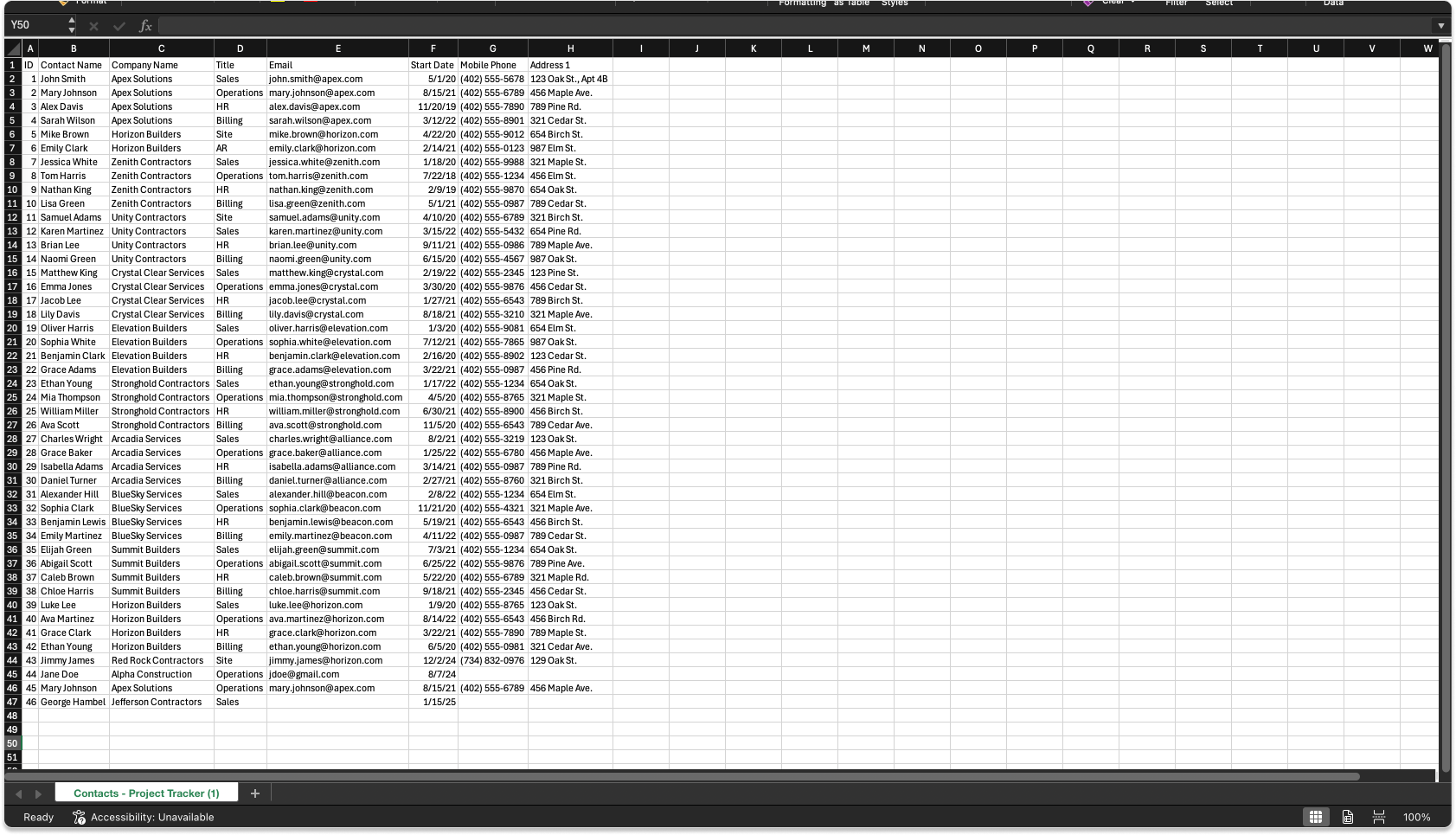
Tips for Exporting Data
-
Filter Presets: Use filter presets to streamline exports and ensure you’re only exporting the data you need.
-
Data Accuracy: Make sure the table is up to date before exporting to avoid missing any new entries or changes.
Need Help?
If you encounter any issues while exporting data, feel free to contact our Support Team at support@buildaible.com.
By following these steps, exporting data from Buildaible is efficient, customizable, and user-friendly!