
How to Create and Edit App Dashboards
Dashboards in Buildaible allow you to organize key reports, add helpful text, and present critical information all in one place. You can customize dashboards to provide your team with a clear overview of their data and workflows, ensuring easy access to the most important insights.
Follow this guide to create or edit an App Dashboard.
Accessing the Dashboards Page
-
Open the app where you want to create or edit a dashboard.
-
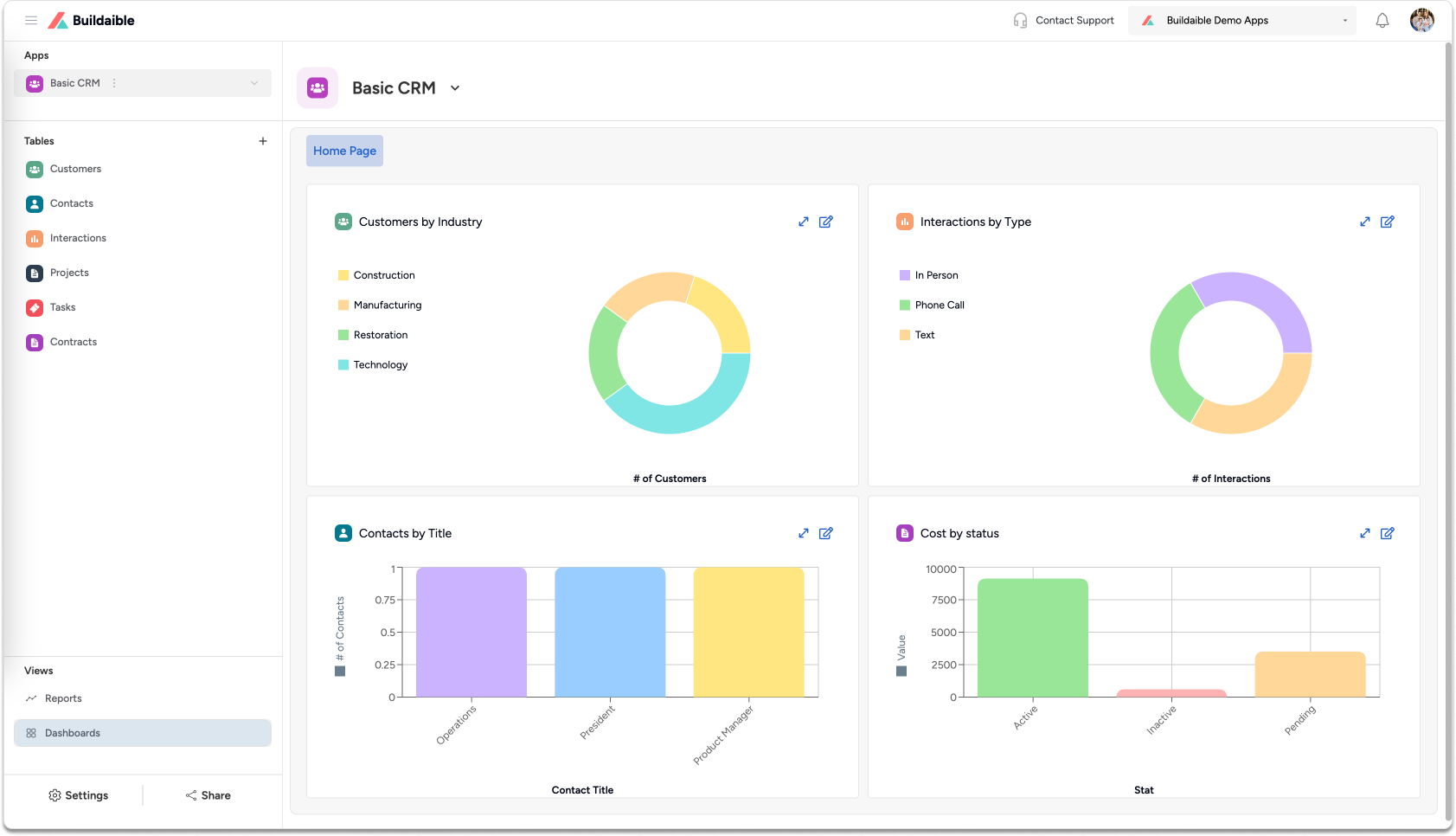
In the Left Sidebar, under Views, click “Dashboards.”
Creating a New Dashboard
-
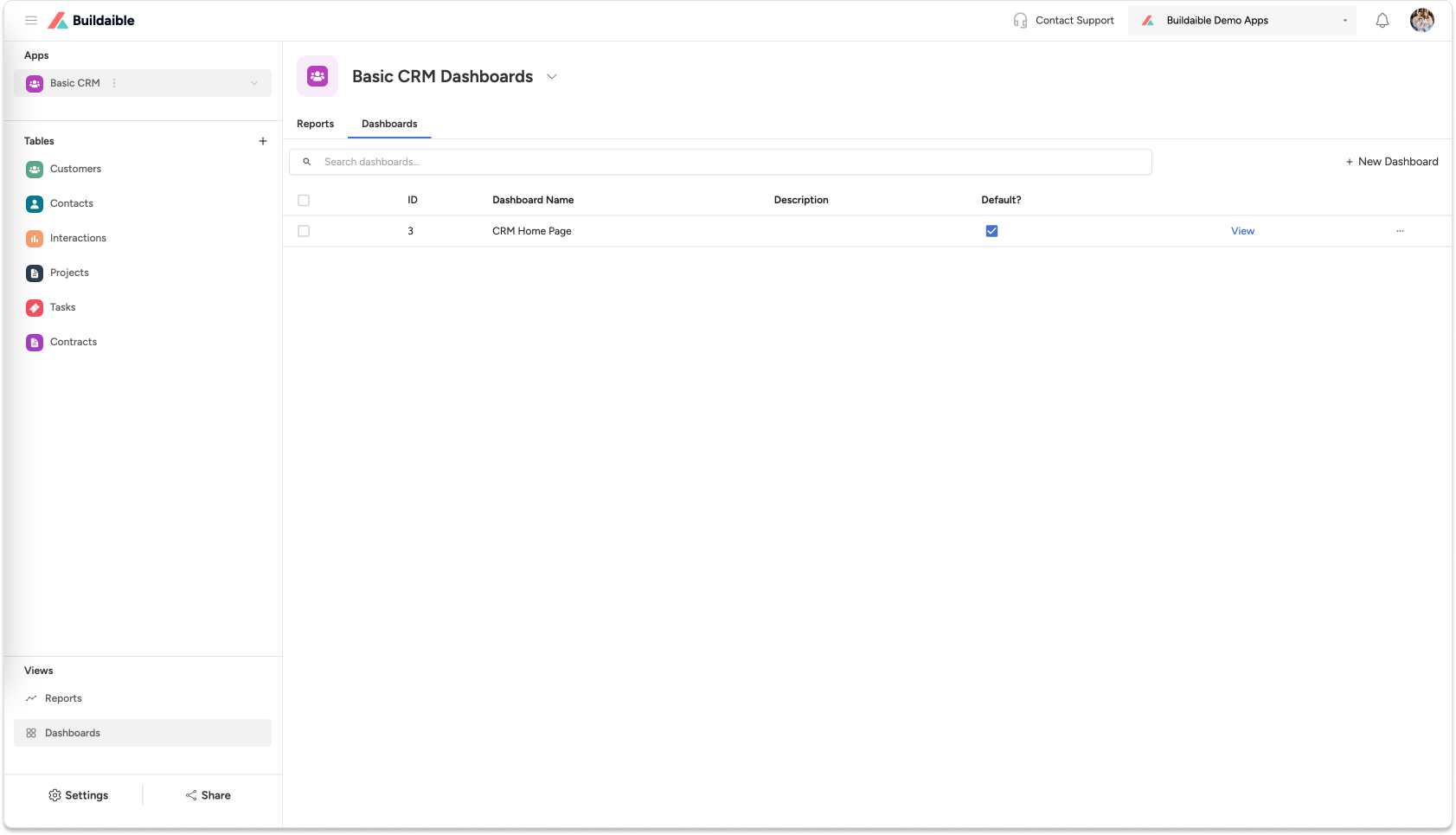
On the Dashboards Page, click the “+ New Dashboard” button.
-
You will be taken to the Dashboard Editor to begin building your dashboard.
Editing an Existing Dashboard
-
From the Dashboards Page, locate the dashboard you want to edit.
-
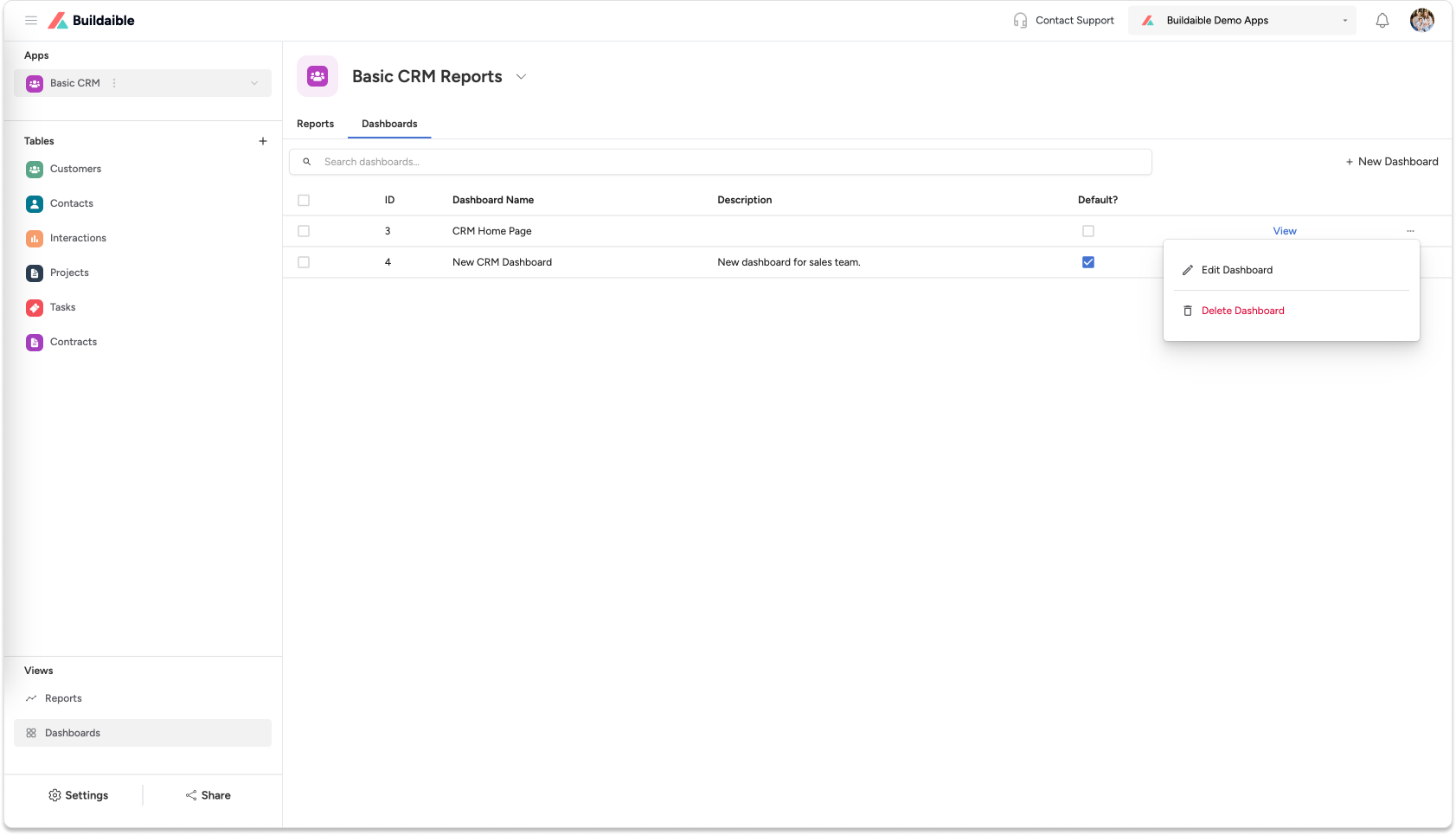
Click the “Edit Dashboard” button next to the dashboard name.
-
You will enter the Dashboard Editor, where you can make changes to the layout, content, and settings.
Customizing Your Dashboard
In the Dashboard Editor, you have full control over the layout and elements of your dashboard.
-
Add Pages (Tabs)
-
Dashboards can have multiple pages to organize different types of information.
-
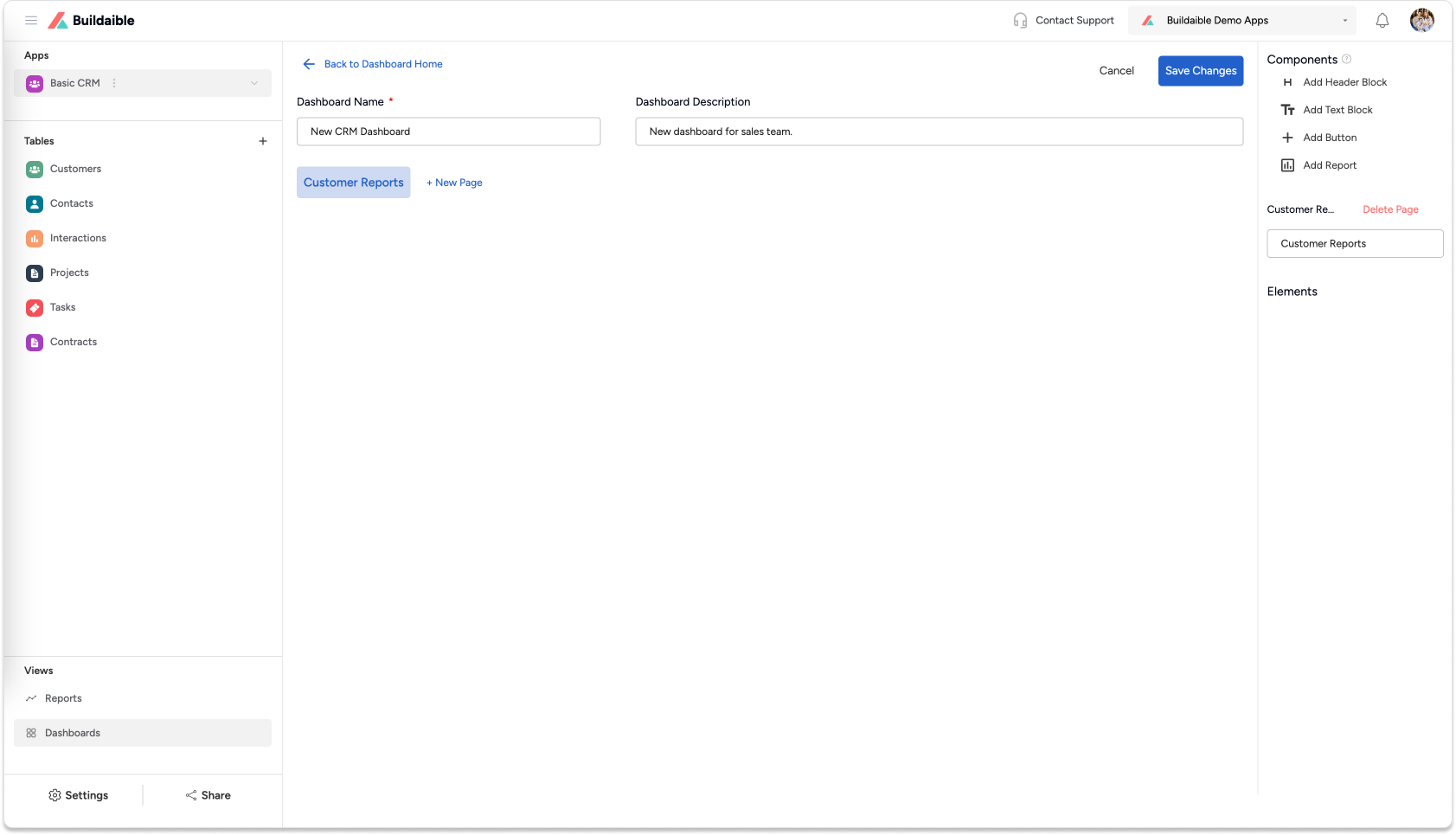
Click “+ New Page” at the top of the editor to add a new tab.
-
Name the page (e.g., “Tasks Overview” or “Sales Metrics”) to reflect its purpose.
-
-
Add Dashboard Components
The Components panel on the right allows you to add various elements to your dashboard:-
Header Block: Add a title or header to organize and label sections.
-
Text Block: Add descriptions, instructions, or any supporting text.
-
Button: Add buttons that can link to other areas of your app or external resources.
-
Report: Add data visualizations or reports you’ve already created.
To add a component:
Drag and drop the desired element from the Components panel to your dashboard canvas.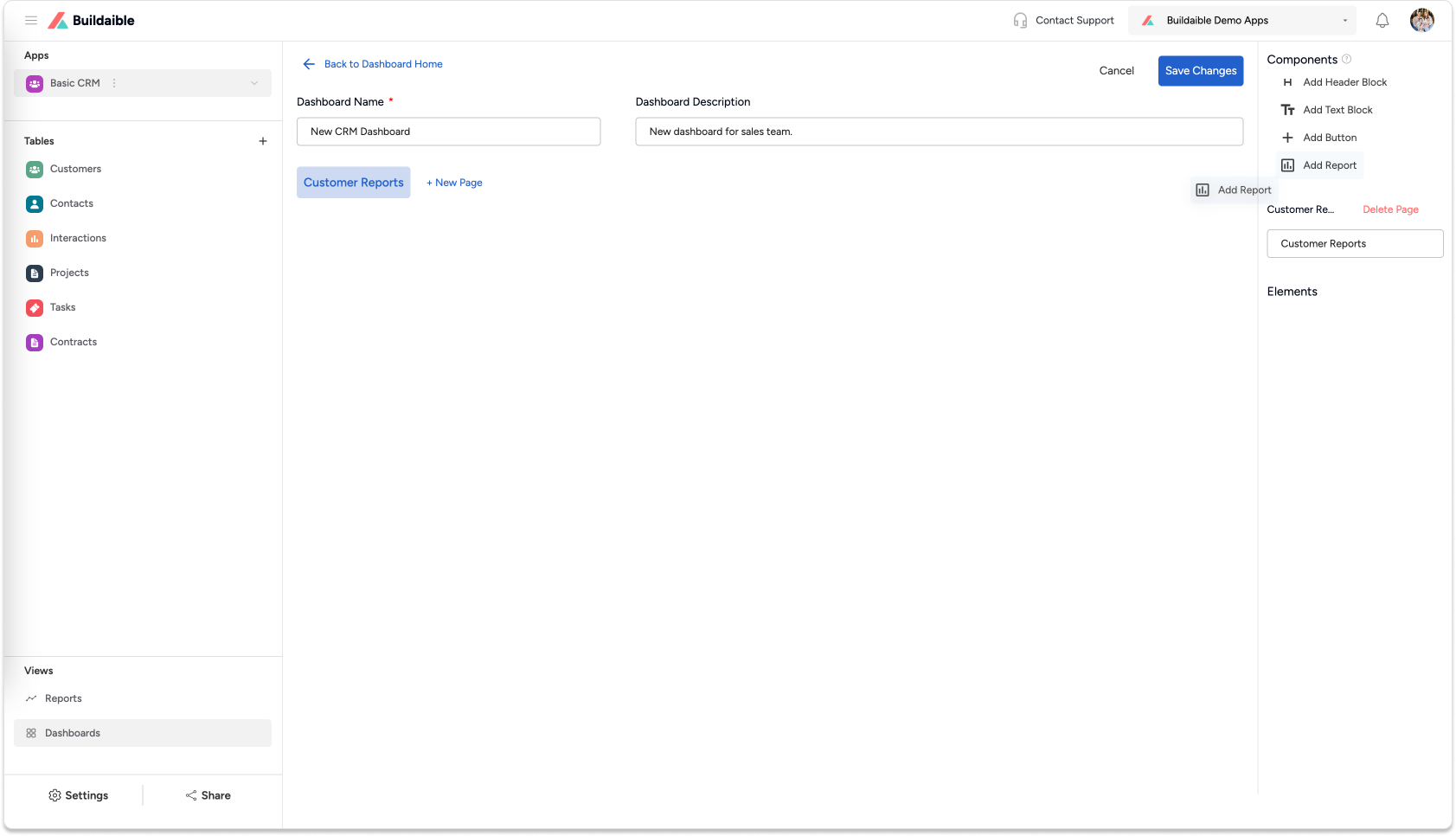
-
-
Add Reports to Your Dashboard
To display reports:-
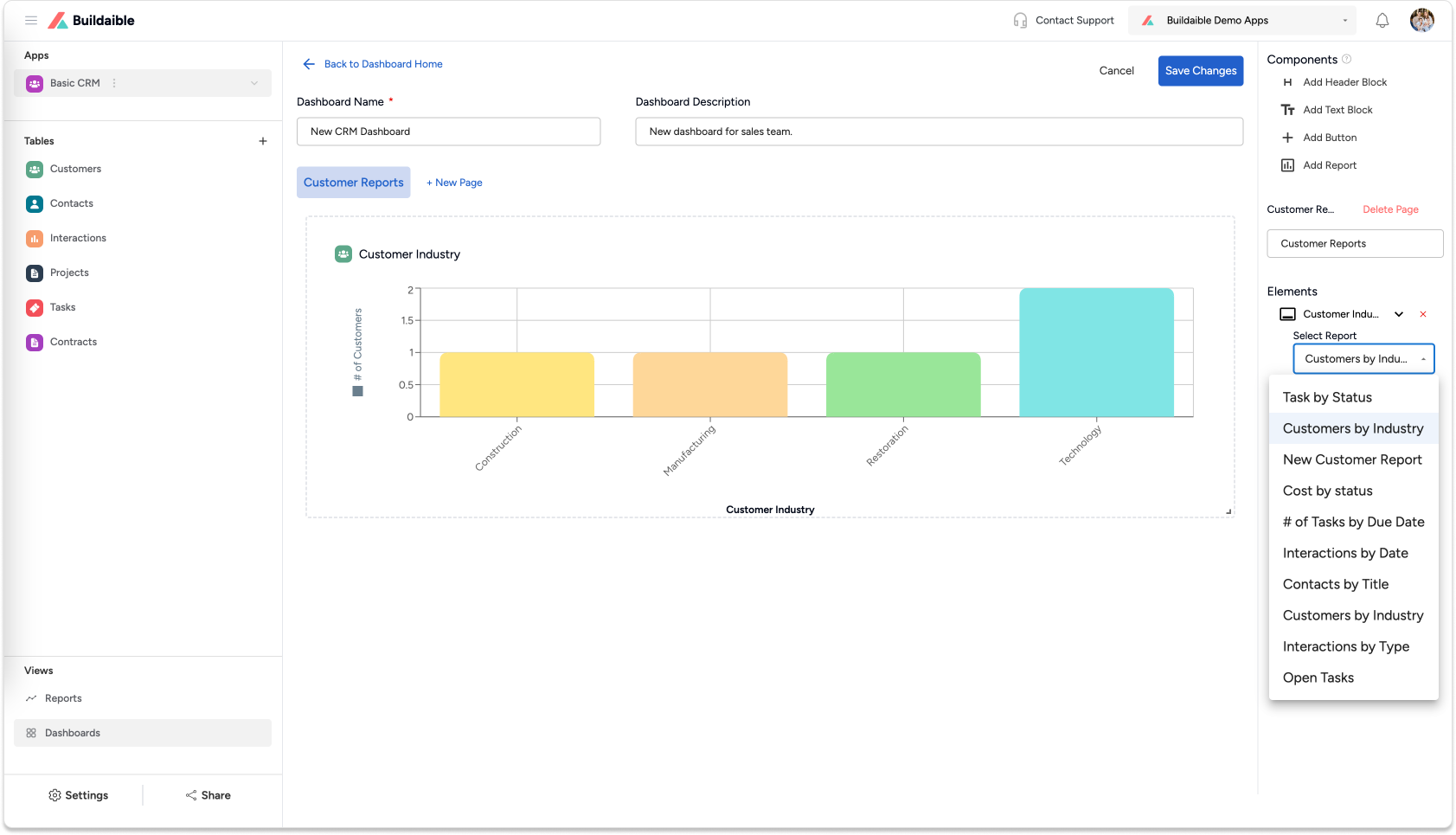
Drag the Report component onto the dashboard.
-
Select the specific report you want to display from the list of available reports.
-
Resize and reposition the report on the dashboard as needed.
-
Override the report name (optional) to customize its display title.
-
-
Resize and Organize Elements
-
Adjust the size of components to ensure the dashboard layout looks clean and organized.
-
Drag elements to rearrange their positions on the page.
.png)
-
-
Saving Your Dashboard
Once you’ve finished customizing your dashboard:-
Click the “Save Changes” button at the top-right corner to save your work.
Your dashboard is now ready to be shared with your team and will be accessible through the Dashboards page.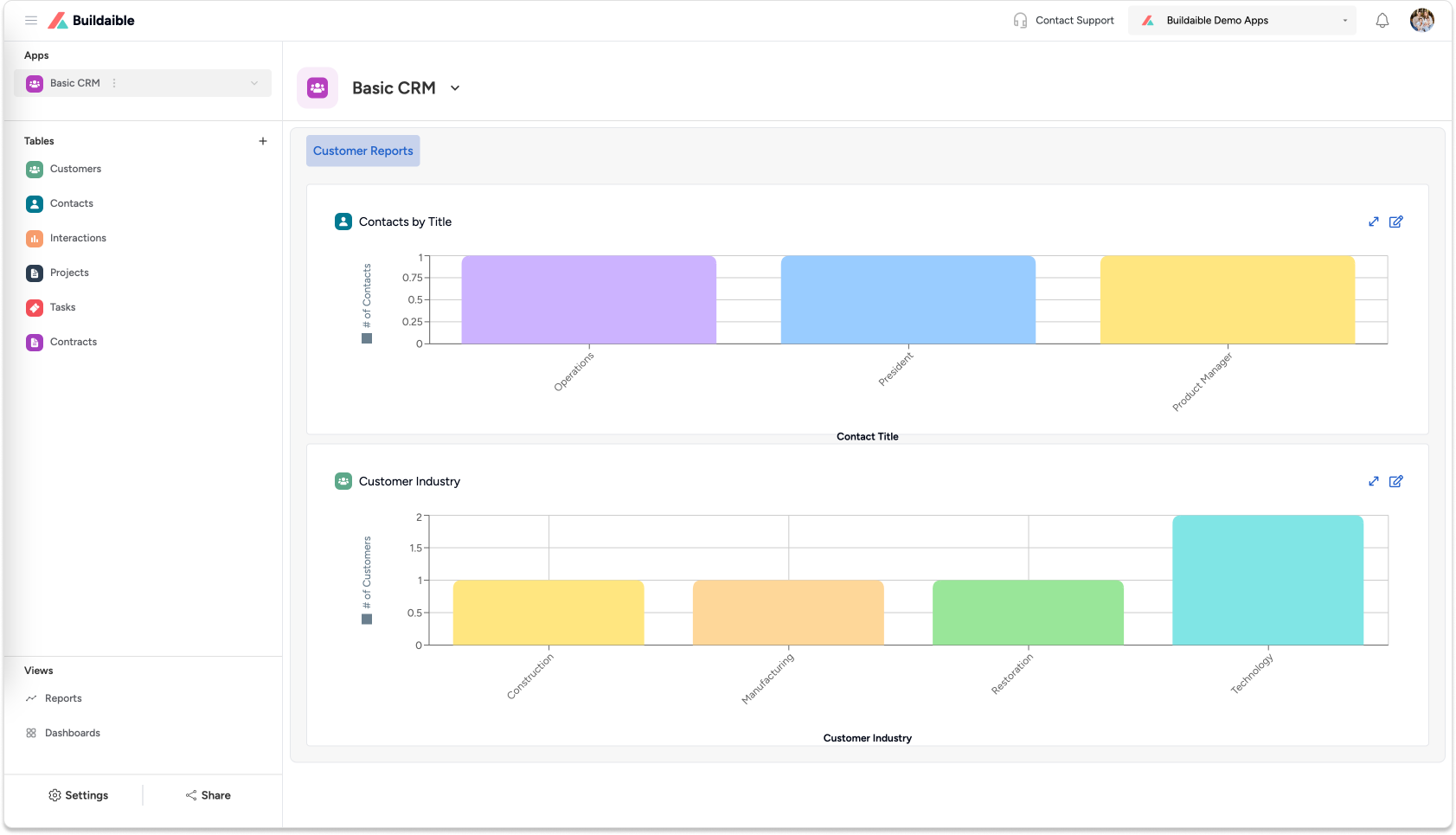
-
Key Features of Buildaible Dashboards
-
Pages (Tabs): Organize dashboards into multiple tabs for better clarity.
-
Customizable Layouts: Drag, drop, resize, and rename components to tailor your dashboard.
-
Report Integration: Display data from reports to provide actionable insights.
-
Text and Buttons: Add helpful notes, titles, and navigation links to improve usability.
Next Steps
Now that you know how to create and customize dashboards, you may want to:
-
Learn How to Create Reports
-
Learn About Report Types
By creating dashboards in Buildaible, you provide your team with a central hub to access key data and insights, improving collaboration and decision-making.